
A sudden drop in organic traffic can feel scary, especially when rankings, clicks, and enquiries start falling at the same time. But before calling it a “Google algorithm hit,” you need to check the data properly.
Google Search Console is one of the best places to start because it shows how your website is performing in Google Search, including clicks, impressions, CTR, average position, queries, pages, countries, devices, and dates.
In this guide, we will show you how to diagnose a possible Google algorithm hit using Search Console in a simple, step-by-step way.
What Is a Google Algorithm Hit?
A Google algorithm hit happens when your website loses visibility after a Google ranking update or quality-related change.
This does not always mean your website has a penalty. In many cases, Google has simply re-evaluated pages, competitors, content quality, user intent, or site trust.
A real algorithm hit usually shows signs like:
- Sudden drop in clicks
- Sudden drop in impressions
- Ranking positions falling across many keywords
- Multiple pages losing traffic at the same time
- Drop starting around the same time as a Google update
- No manual action shown in Search Console
Step 1: Open the Performance Report
First, log in to Google Search Console and open your website property.
For Digitalise, select:
Property: https://Yourdomain.com/
Then go to:
Search Console → Performance → Search results
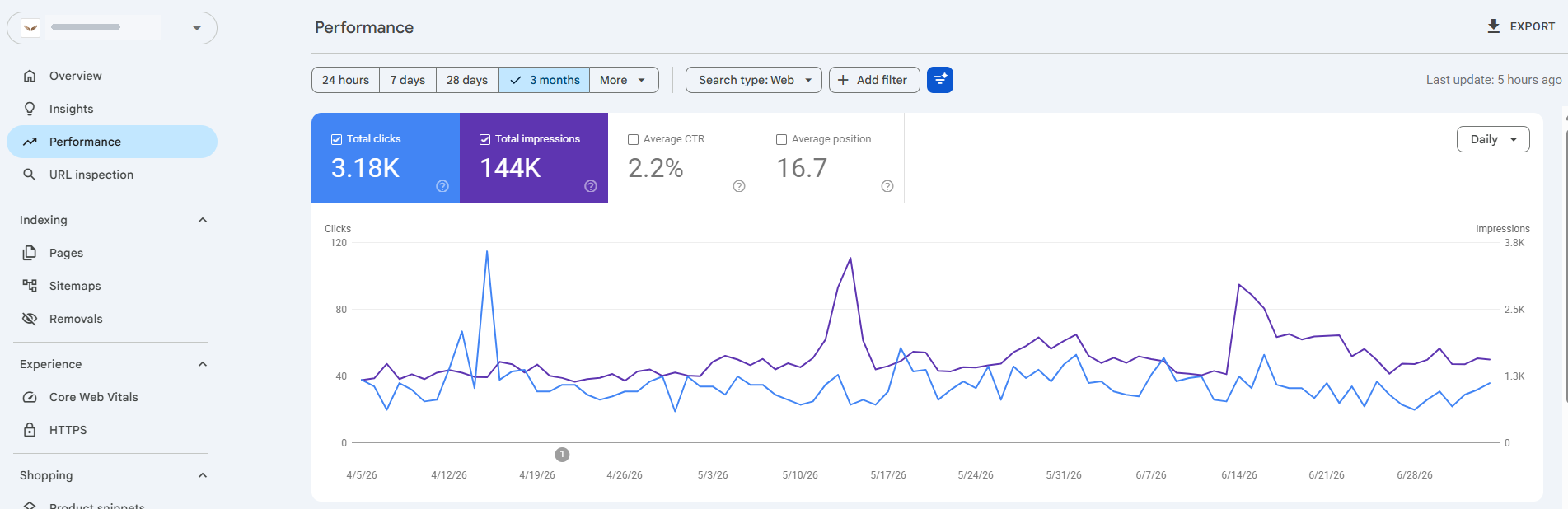
This report shows how your site performs in Google Search. Google says this report can be used to see how search traffic changes over time, which queries bring traffic, and which pages have the highest or lowest click-through rate.
Step 2: Set the Right Date Range
Do not check only the last 7 days. Short date ranges can be misleading.
Use a longer comparison.
Recommended settings:
Date range: Last 3 months
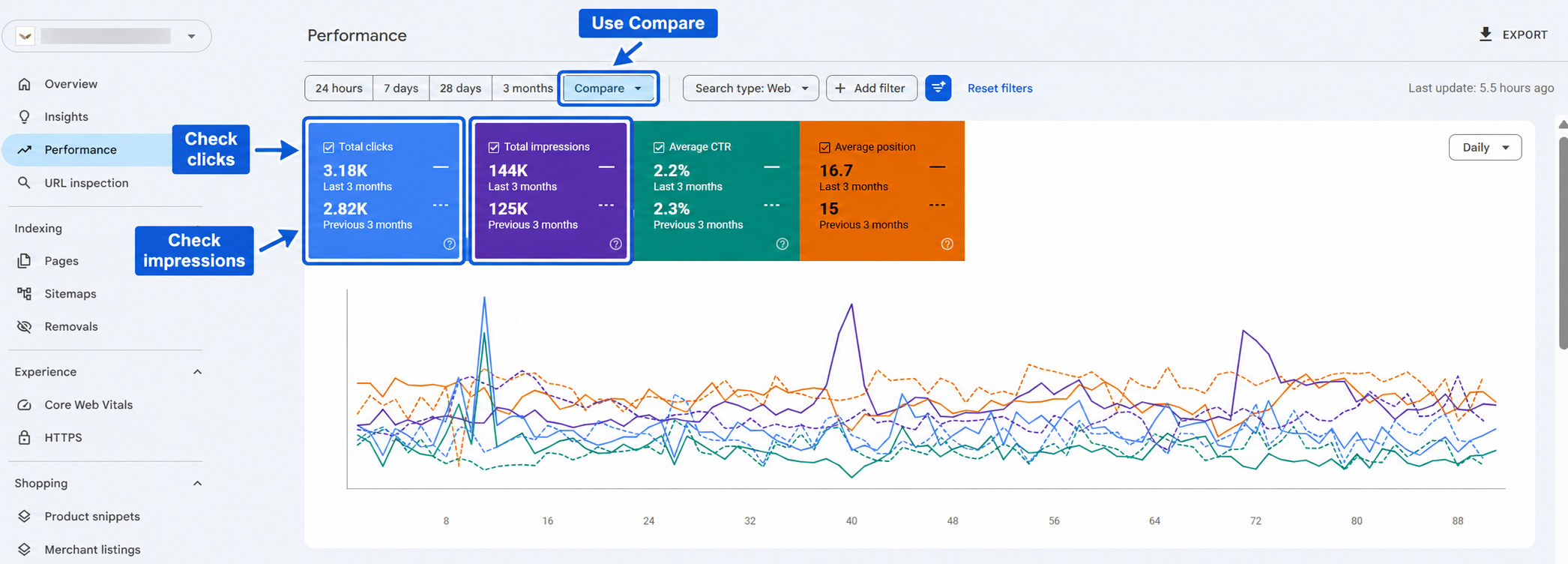
Compare with: Previous 3 months
To do this:
- Click the date filter at the top.
- Select Compare.
- Choose Compare last 3 months to previous period.
- Apply the filter.
Google allows you to adjust date ranges and compare performance over different time periods inside the Performance report.
Step 3: Check Clicks and Impressions First
Now look at the graph.
Focus on these two metrics first:
Total clicks
This shows how many people clicked your website from Google Search.
Total impressions
This shows how many times your website appeared in Google Search results.
If clicks dropped but impressions stayed the same, the issue may be CTR, titles, meta descriptions, or SERP layout.
If both clicks and impressions dropped, it may be a ranking, indexing, demand, or algorithm-related issue.
Step 4: Check the Exact Drop Date
Look at the graph and identify when the drop started.
Ask:
- Did the drop happen suddenly?
- Did it happen slowly over weeks?
- Did it start around a known Google update?
- Did it affect all pages or only a few pages?
A sudden sitewide drop is more serious than a small drop on one blog post.
Google’s Search Status Dashboard lists Search-related incidents and ranking update information, so it is useful to check whether the traffic drop happened around a known Google update or Search issue.
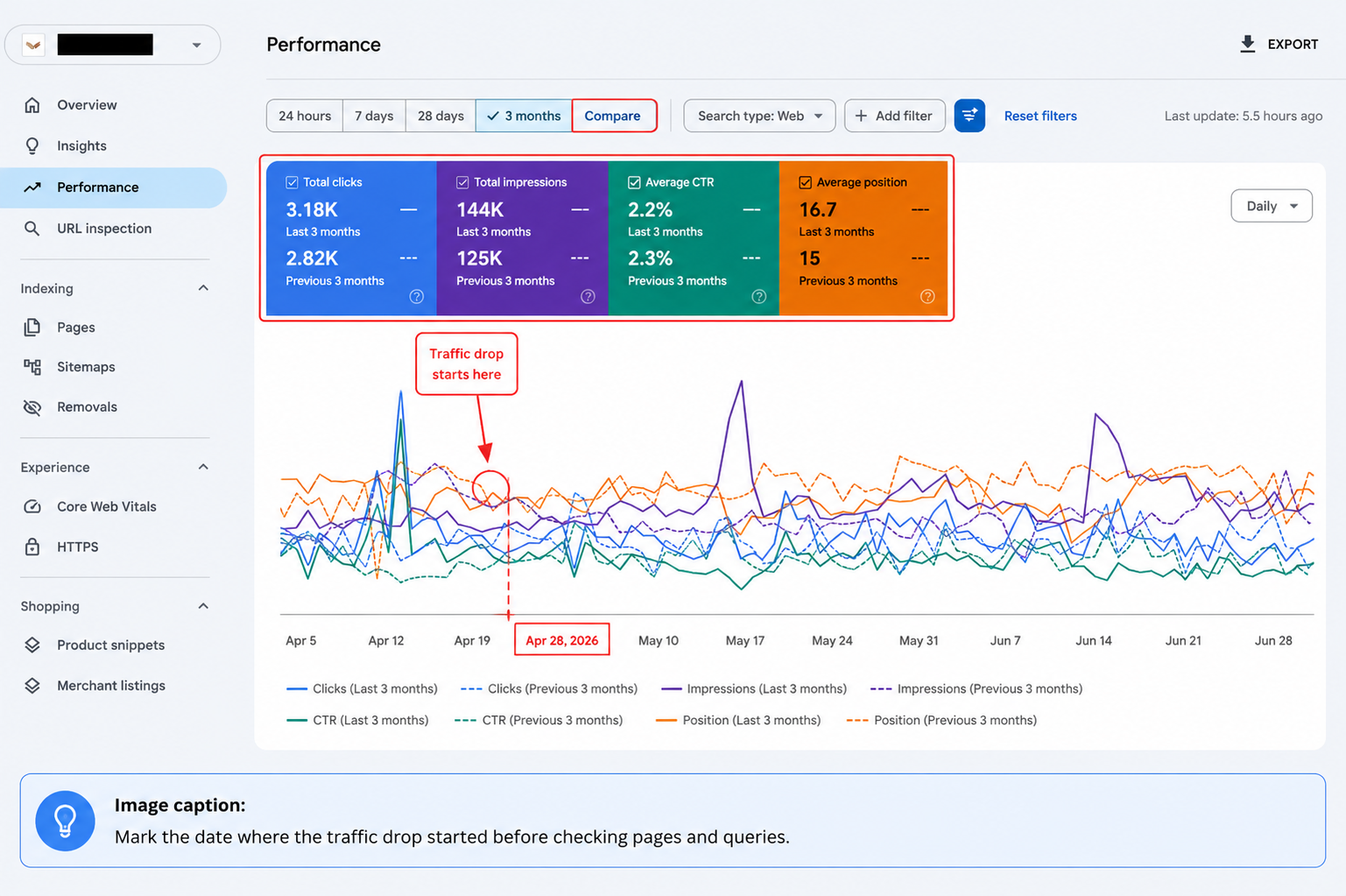
Step 5: Check Whether the Drop Is Sitewide or Page-Specific
Next, scroll below the graph and open the Pages tab.
Sort pages by Clicks difference or compare the current period with the previous period.
Look for:
- Pages with the biggest click loss
- Pages with the biggest impression loss
- Pages that lost average position
- Pages that used to bring enquiries or leads
If only one or two pages dropped, it may be a page-level issue.
If many important pages dropped together, it may be a broader algorithm, content quality, technical, or authority issue.
Step 6: Check Which Queries Lost Traffic
Now open the Queries tab.
This shows the search terms people used before finding your website.
Look for queries where:
- Clicks dropped
- Impressions dropped
- Average position became worse
- Main service keywords lost visibility
- Branded keywords dropped
Separate the queries into two groups:
Branded queries
Examples: Digitalise, Digitalise Canada, Digitalise.ca
Non-branded queries
Examples: SEO agency Canada, web design agency Toronto, digital marketing agency Canada
If branded queries dropped, there may be a tracking, indexing, reputation, or demand issue.
If non-branded queries dropped, it is more likely to be SEO, ranking, content, competitor, or algorithm related.
Step 7: Check Average Position Carefully
Average position can help, but do not rely on it alone.
A page can lose clicks even if average position does not look very different. This can happen because of:
- AI Overviews
- Featured snippets
- Ads above organic results
- Map packs
- Competitors improving their titles
- Lower search demand
- Seasonal changes
Still, if the average position moved from page 1 to page 2 for important keywords, that is a strong sign of ranking loss.
Step 8: Check Countries and Devices
Sometimes traffic drops are not sitewide. They may affect only one country or one device type.
Open:
Countries tab
Check whether the drop happened in Canada, the US, or another location.
Devices tab
Check whether the drop happened on mobile, desktop, or tablet.
If mobile traffic dropped more than desktop, check mobile usability, page speed, layout, popups, and Core Web Vitals.
Step 9: Check Page Indexing Issues
A traffic drop is not always caused by an algorithm update. Sometimes important pages are no longer indexed.
Go to:
Search Console → Indexing → Pages
Check whether important pages are indexed.
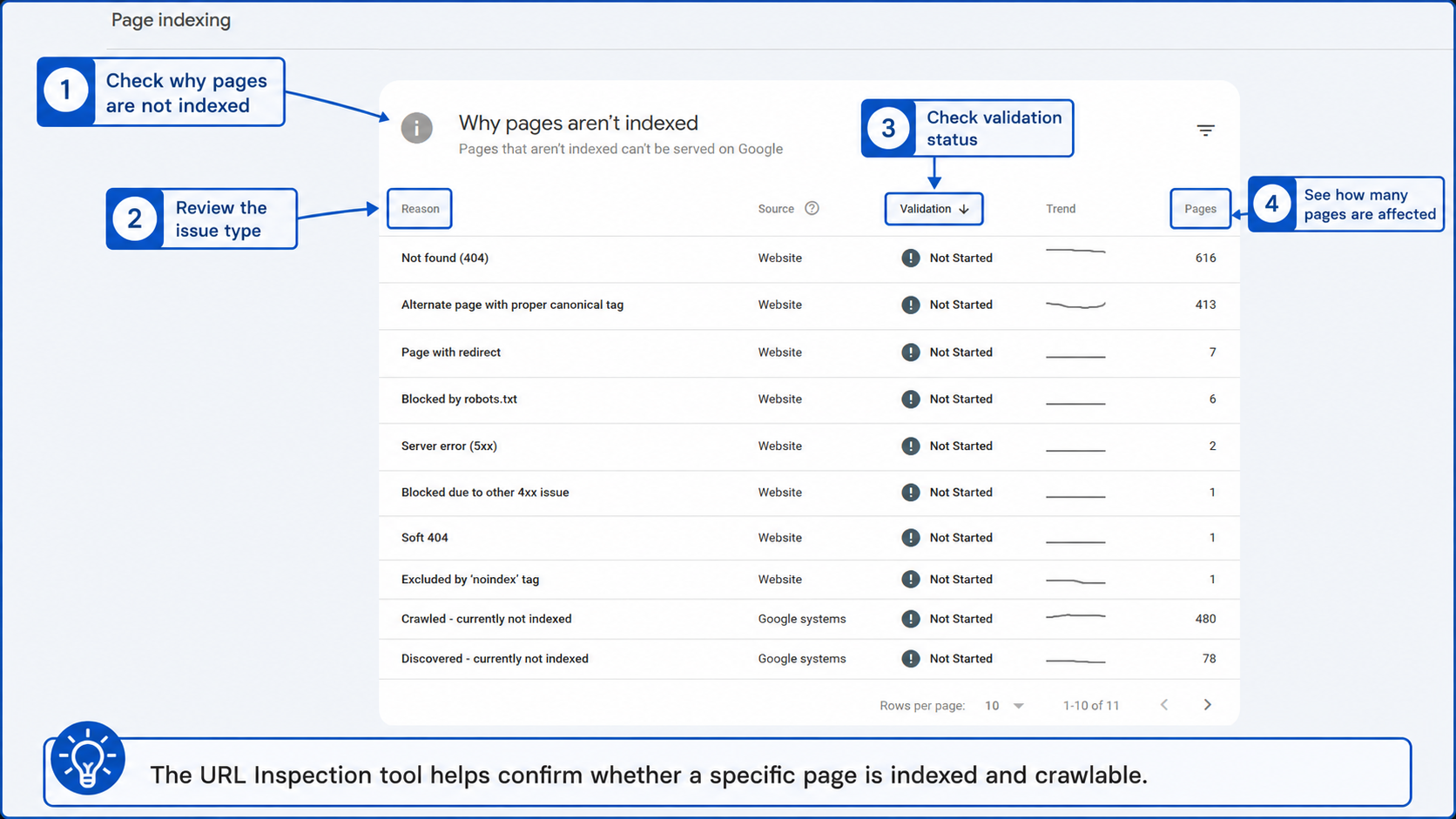
Google’s Page indexing report shows which pages Google can find and index, along with indexing problems. Google also notes that all important URLs should be indexed, although not every URL on a website needs to be indexed.
Look for issues like:
- Crawled – currently not indexed
- Discovered – currently not indexed
- Duplicate without user-selected canonical
- Alternate page with proper canonical tag
- Page with redirect
- Not found 404
- Blocked by robots.txt
- Excluded by noindex tag
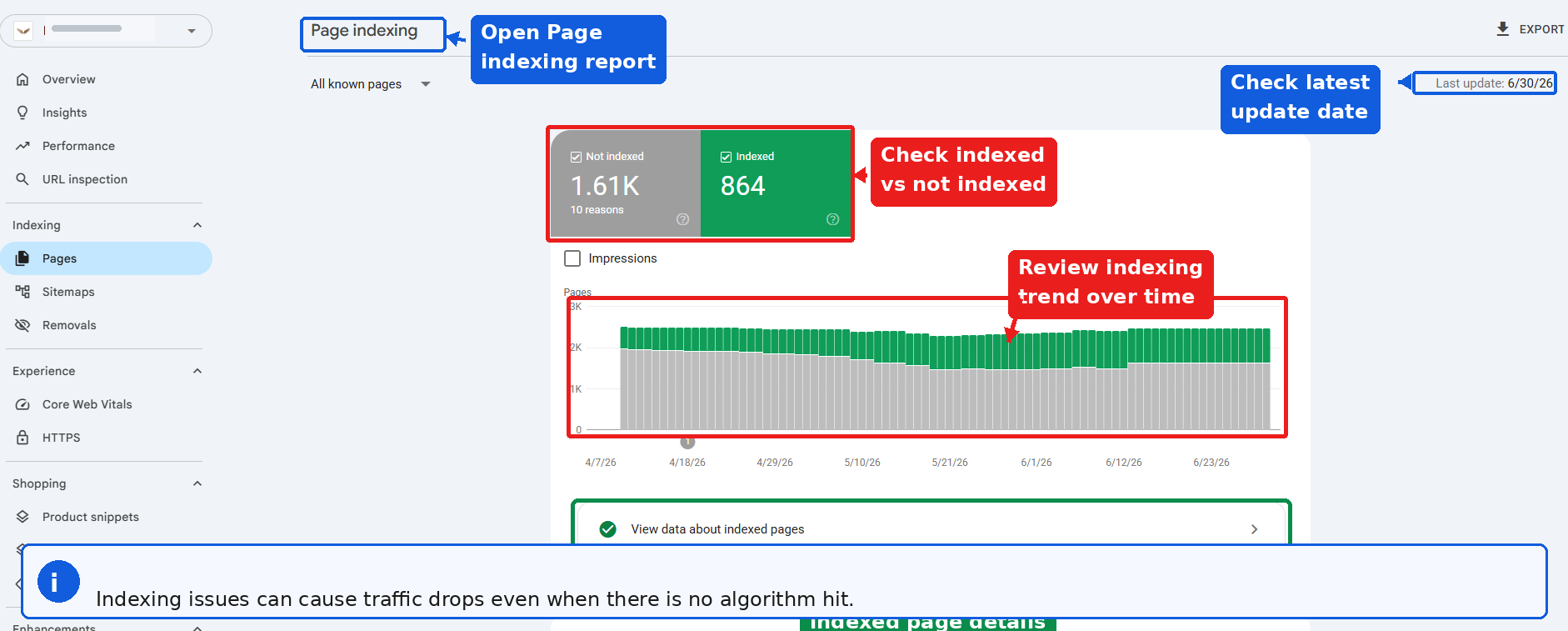
Step 10: Inspect Important URLs Manually
For each important page that lost traffic, use the URL Inspection tool.
Check:
- Is the page indexed?
- Is Google allowed to crawl it?
- Is the canonical URL correct?
- Was the page recently crawled?
- Is there a noindex issue?
- Is the live page available to Google?
Google says the Page indexing report is not used to investigate the index status of a specific page; for specific URLs, the URL Inspection tool should be used.
Step 11: Check Manual Actions and Security Issues
Not every traffic drop is algorithmic. Sometimes a website has a manual action or security issue.
Go to:
Search Console → Security & Manual Actions → Manual actions
Then check:
Security & Manual Actions → Security issues
If both reports show no issues, then the drop is likely not a manual penalty.
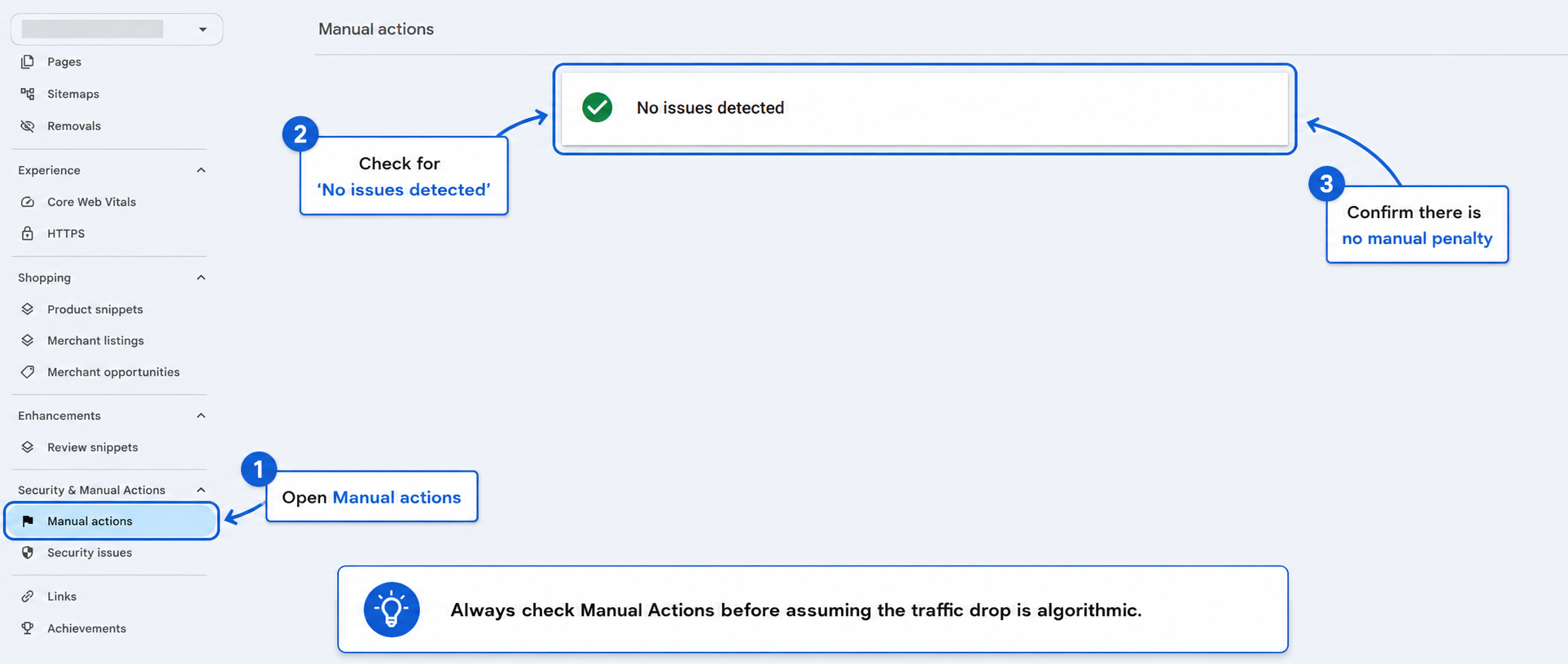
Step 12: Match the Drop With Google Updates
After finding the drop date, compare it with known Google updates.
Check:
- Google Search Status Dashboard
- Google Search Central updates
- SEO news sources
- Your own SEO reporting timeline
Google’s documentation on core updates explains that ranking changes can happen because Google’s systems are reassessing content overall, not necessarily because a specific page has done something wrong.
If the drop started during or shortly after a core update, it may be an algorithm-related decline.
Step 13: Check Whether Competitors Improved
If your rankings dropped, someone else likely moved up.
Search your main keywords manually in Google.
Check the pages now ranking above you.
Compare:
- Is their content more detailed?
- Do they answer the query better?
- Do they have stronger service pages?
- Do they show better trust signals?
- Do they have stronger internal linking?
- Do they have fresher content?
- Do they have stronger topical authority?
For example; Digitalise, check competitors for terms like:
- digital marketing agency Canada
- SEO agency Canada
- web design agency Canada
- digital marketing services Canada
- SEO services Canada
Step 14: Review the Dropped Pages
After identifying the affected pages, review them manually.
Check whether each page has:
- One clear H1
- Strong title tag
- Clear meta description
- Helpful introduction
- Service details
- Location relevance
- FAQs
- Internal links
- Case studies or proof
- Strong CTA
- Updated content
- Schema markup
- Fast mobile experience
For a digital marketing website like Digitalise, service pages should clearly explain who the service is for, what is included, why the business is credible, and how the visitor can take action.
Step 15: Decide the Type of Drop
Use this simple diagnosis table.
| What You See in Search Console | Likely Issue |
|---|---|
| Clicks dropped, impressions stable | CTR issue, title/meta issue, SERP layout change |
| Clicks and impressions dropped together | Ranking or visibility issue |
| Only one page dropped | Page-level content, indexing, or competitor issue |
| Many pages dropped together | Possible algorithm, quality, or technical issue |
| Branded queries dropped | Brand demand, tracking, indexing, or reputation issue |
| Mobile dropped more than desktop | Mobile UX, speed, or page experience issue |
| Important pages not indexed | Indexing or crawlability issue |
| Manual action shown | Manual penalty, not algorithmic |
| Drop matches Google update | Possible algorithm-related decline |
What to Do After Diagnosing the Drop
Once you understand the issue, do not make random changes.
Start with the pages and queries that lost the most business value.
Recommended action plan:
- Export affected pages and queries from Search Console.
- Separate branded and non-branded keyword drops.
- Check indexing for important pages.
- Compare affected pages with current competitors.
- Improve content depth, trust, internal links, and page intent.
- Fix technical issues such as noindex, canonicals, redirects, and crawl errors.
- Improve title tags and meta descriptions where impressions stayed stable but clicks dropped.
- Add helpful FAQs and schema where relevant.
- Strengthen internal links from high-authority pages.
- Track recovery weekly, not daily.
Final Checklist
Before calling it a Google algorithm hit, confirm these points:
- Did traffic drop suddenly?
- Did impressions drop too?
- Did multiple important pages lose visibility?
- Did non-branded keywords drop?
- Are important pages still indexed?
- Are there no manual actions?
- Are there no major tracking issues?
- Did the drop match a known Google update?
- Did competitors improve their pages?
- Are your affected pages still strong enough compared with ranking competitors?
If most of these answers point in the same direction, then the website may have been affected by a Google algorithm update. But if the issue is limited to a few pages, devices, countries, or indexing errors, it may not be an algorithm hit at all. The right approach is to diagnose first, then fix based on evidence.